Exporting with materialized views
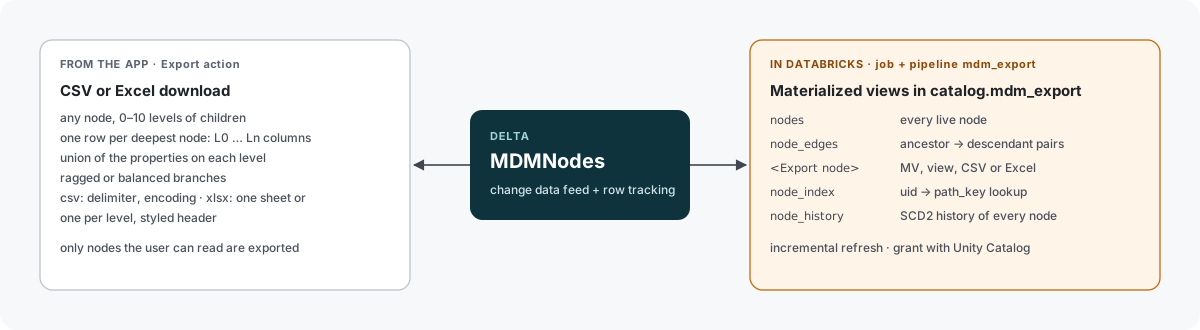
For dashboards, SQL users, other pipelines and ML, MDMongoose publishes master data into Unity Catalog. You decide what is published with Export nodes: each one turns a branch of the hierarchy into a materialized view, a view, or a CSV / Excel file on a volume — the same table the Export dialog downloads. How it works inside: Architecture › Export.
Create an Export node
-
Go to Model › Exports and click Add Child. Choose the type Export.
-
Fill in the properties:
Property Example Name Customer golden recordsExport Type Materialized view Object Name customer_golden_records(leave empty to derive it from the name)Root Node Master Data › Customer Child Depth 1— the Master Data node and its golden recordsBalanced none Include Properties, Include UIDs on -
Click Add child. MDMongoose checks the Object Name — it must be new in
mdm_export(or already belong to this node) and must not be one of the system objects — then:- a View is created at once;
- a Materialized view, CSV or Excel export starts the mdm_export job; the object or file appears when the run finishes (the Last Run property shows the result).
The node's Location shows the full name of the view or the path of the file, and the Definition group shows the generated SQL.
The demo has three Export nodes to start from: Customer golden records (materialized view), Product
hierarchy (CSV) (all six product levels, balanced, ; as delimiter) and Countries (view) — click Run
Export on the last one to create the view.
Choosing the Export Type
| Export Type | Good for | Freshness | Where |
|---|---|---|---|
| Materialized view | Dashboards, Genie, joins in other pipelines, large branches | refreshed by mdm_export (after loads, golden refreshes and Run Export); incremental where possible | <catalog>.mdm_export.<name> |
| View | Always-current data for ad-hoc SQL, small branches | live — every query reads MDMNodes | <catalog>.mdm_export.<name> |
| CSV | Files for other systems, SFTP drops, Excel users | written by mdm_export | /Volumes/<catalog>/mdm_core/exports/<name>.csv |
| Excel | Business users; one sheet, or one sheet per level | written by mdm_export | /Volumes/<catalog>/mdm_core/exports/<name>.xlsx |
Edits made in the app are in MDMNodes at once. A view shows them immediately; a materialized view or
a file shows them after the next mdm_export run — click Run Export on the Export node to refresh it now.
Columns
One row per deepest node of the branch; per level L<n>_UID, L<n>_Name, L<n>_Types and the properties of
the NodeTypes found on that level:
SELECT L1_UID AS golden_uid, L1_Name AS customer, L1_VAT_ID, L1_Country, L1_City, L1_Match_Score
FROM workspace.mdm_export.customer_golden_records
WHERE L1_Country = 'Germany';
- Enum and Link values are names (
Germany, not a UID); arrays are comma-separated text. - Number, Float, Boolean and Timestamp properties keep their SQL types.
- With Balanced, a branch that ends early repeats its last node on the lower levels; Balanced Flag adds
a
Balancedcolumn that istrueon those rows. - A new property or NodeType on a level becomes a new column at the next refresh (views: at the next save or Run Export).
System objects
The pipeline also keeps these, for every deployment:
| Object | Contents |
|---|---|
nodes | every live node, one row per node |
node_edges | every ancestor → descendant pair with its distance — subtrees without recursion |
node_index | UID → path and name (the app's lookup index) |
node_history | SCD 2 history of every node |
-- every product below the "Garden" division
SELECT n.uid, n.name
FROM workspace.mdm_export.node_edges e
JOIN workspace.mdm_export.nodes n ON n.uid = e.descendant_uid
WHERE e.ancestor_uid = 'MDM-2CH';

-- how a golden record changed over time
SELECT * FROM workspace.mdm_export.node_history
WHERE uid = 'MDM-277T' ORDER BY __START_AT;
Configuring the export
When it refreshes
The mdm_export job (files, then the pipeline with the materialized views) runs:
- after every load —
mdm_loadand the scheduledmdm_refreshstart it, - after every golden-record refresh (
mdm_action), - when an Export node is saved, or Run Export is clicked,
- once from
mdm_init.
To refresh on your own schedule, add a Run job task for mdm_export to your job, or start it by hand from
Jobs & Pipelines. Its parameter uid limits the file exports to one Export node (all by default).
Changing or removing an export
- Edit the Export node and save: a view is replaced at once; materialized views and files at the next run.
- Changing the Object Name of a view drops the old view. To switch a view to a materialized view (or back), use a new Object Name.
- Delete the Export node: a view is dropped at once; a materialized view is no longer declared by the pipeline and is removed by its next update; files stay on the volume until you delete them.
Who can do what
- Creating an Export node needs Manager on Model › Exports (it adds a child) and at least Reader on the Root Node.
- Editing one needs Modifier; Run Export needs Modifier (its Required Level).
- The app's service principal needs
CREATE TABLEonmdm_exportfor views —mdm_initgrants it.
Giving consumers access
Grant access with Unity Catalog, as for any table:
GRANT USE CATALOG ON CATALOG workspace TO `analysts`;
GRANT USE SCHEMA, SELECT ON SCHEMA workspace.mdm_export TO `analysts`;
-- files
GRANT READ VOLUME ON VOLUME workspace.mdm_core.exports TO `analysts`;
Consumers should read mdm_export, not MDMNodes: the objects are stable, named for their purpose and leave
out deleted nodes. Unity Catalog grants on them are separate from the Steward permissions inside the app —
an export publishes the whole branch to everyone who may read the schema.
Changing the target
The pipeline's catalog and schema come from the bundle (resources/pipelines.yml, variable catalog).
Deploy with another catalog to publish elsewhere.