Importing data
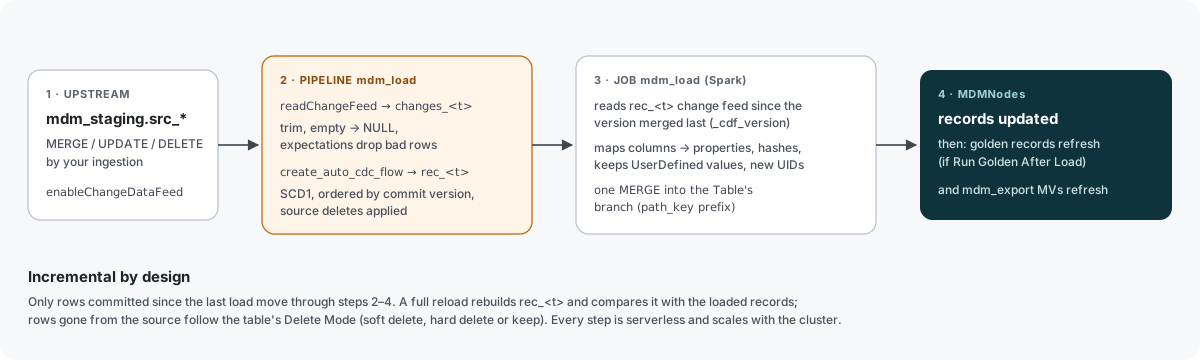
Source data reaches MDMongoose in four steps: a staging table with change data feed, a record type that describes its rows, a Table node that configures the load, and the load itself — on demand or on a schedule.
1. Create the staging table in Databricks
MDMongoose reads changes, not snapshots. Every source must be a Delta table with change data feed
enabled, normally in the mdm_staging schema. How the data gets there is up to you: an ingestion job,
Lakeflow Connect, a notebook or a streaming table.
CREATE TABLE workspace.mdm_staging.src_sap_kna1 (
  KUNNR STRING, NAME1 STRING, LAND1 STRING, ORT01 STRING, STCEG STRING
) TBLPROPERTIES (delta.enableChangeDataFeed = true);

-- or for a table you already have
ALTER TABLE workspace.mdm_staging.src_sap_kna1
  SET TBLPROPERTIES (delta.enableChangeDataFeed = true);
Upstream can INSERT, MERGE, UPDATE and DELETE freely — all of it reaches MDMongoose on the next load.
If your source is itself a streaming table in a pipeline, write it to mdm_staging as a streaming table and
enable the change data feed on it in the table properties:
from pyspark import pipelines as dp

@dp.table(name="src_crm_accounts", table_properties={"delta.enableChangeDataFeed": "true"})
def src_crm_accounts():
    return spark.readStream.table("raw.crm.accounts")
2. Create the record type in the app
Each loaded row becomes a Record node with a type that describes the source's columns.
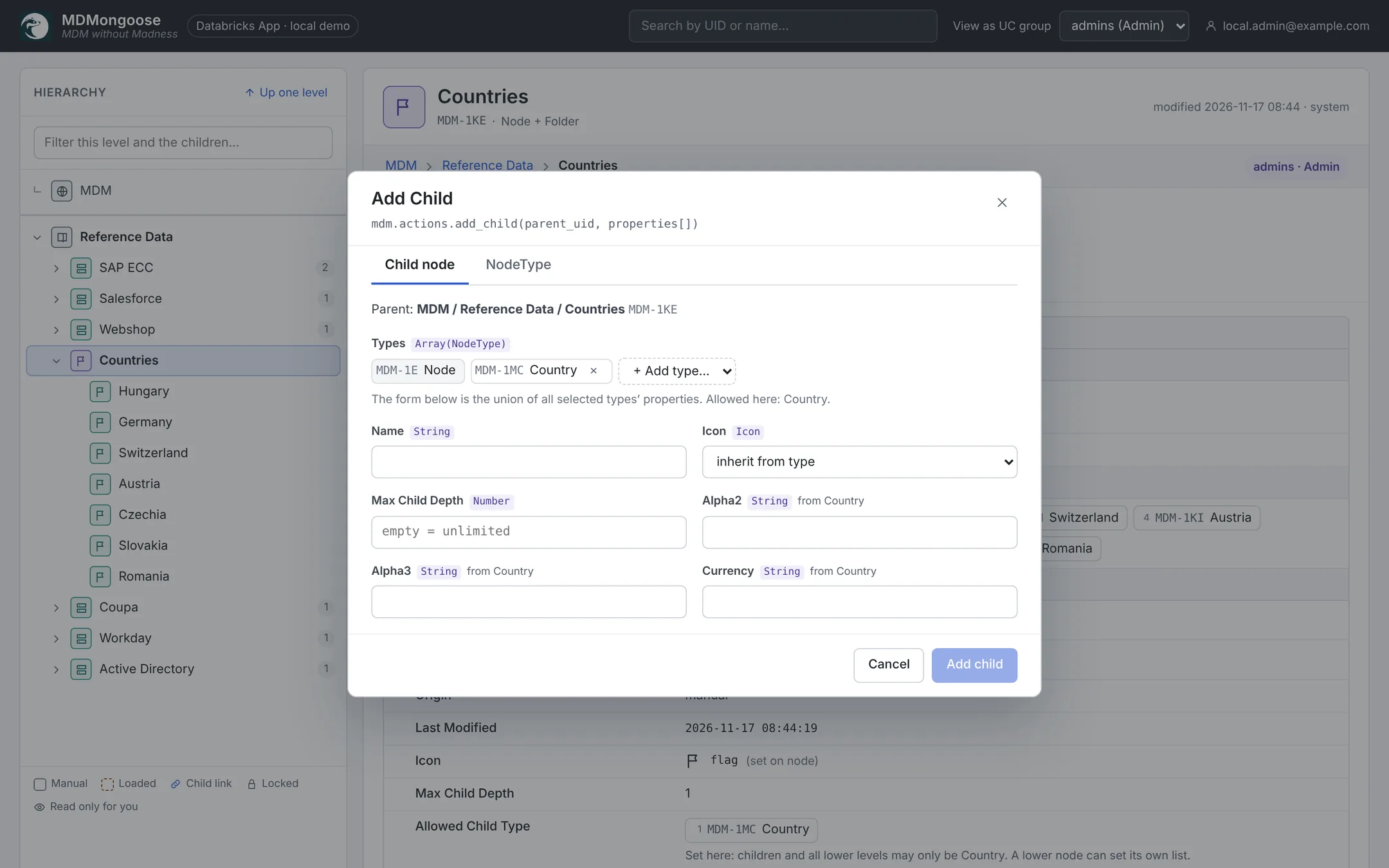
- Go to Model › Tables and open (or create, with Add Child → Folder) the folder of the source system, for example SAP ECC.
- Click Add Child, switch to the NodeType tab and name it after the table, e.g.
kna1Record. - Add one property per column you want to keep (usually String; use Number, Timestamp or Enum where it helps), choose the default icon and click Create NodeType.
3. Create the Table node and configure the load
- Go to Reference Data, open (or create) the folder of the source system and click Add Child with
type Table. Name it after the source, e.g.
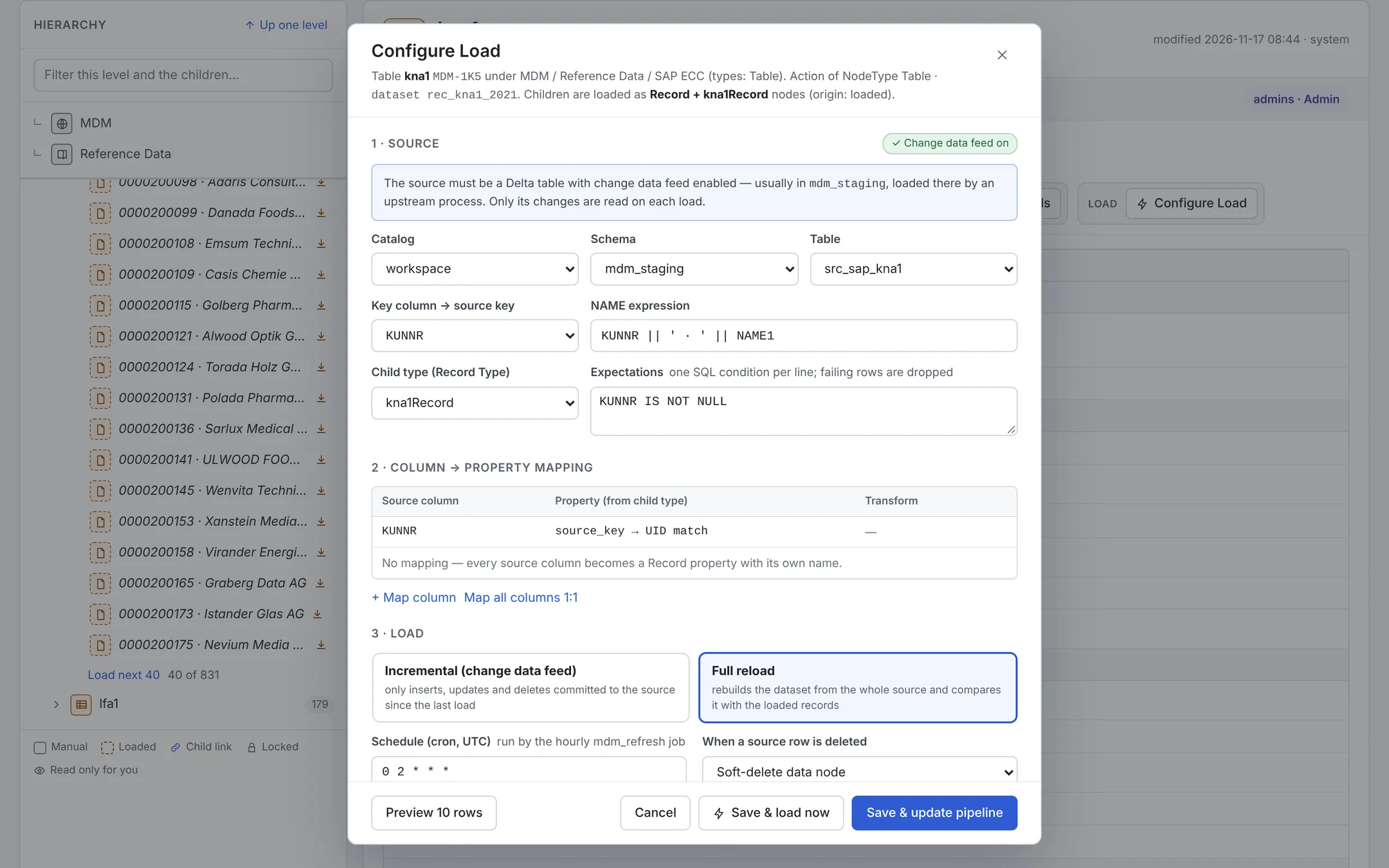
kna1. - On the new node click Configure Load:
| Setting | Meaning |
|---|---|
| Source — catalog, schema, table | The staging table. A badge shows whether its change data feed is on; a table without it is refused, with the ALTER TABLE statement to fix it. |
| Keys | Column(s) that identify a row. They become the record's Source Key. |
| Name expression | SQL for the node name, e.g. KUNNR || ' · ' || NAME1. |
| Record type | The type from step 2. |
| Column mapping | Source column → property, with an optional transform: trim(), upper(), lower(), upper(trim()), title(). Without a mapping every column is kept under its own name. Values are stored as text, not checked against Enum or Link properties — see Values that do not resolve. |
| Expectations | Data-quality rules as SQL conditions, e.g. KUNNR IS NOT NULL. Rows that fail are dropped by the pipeline and counted — see Data quality. |
| Load mode | Incremental (change data feed): only commits since the last load. Full reload: rebuilds the cleaned copy from the whole source and compares it with the loaded records by key — only the differences are written. The first load is always full. How both work |
| Schedule | A cron expression (e.g. 0 2 * * *) for scheduled loads. |
| When a source row is deleted | Soft delete the record, Hard delete it, or Keep it. |
| Run golden after load | Refresh the golden records that use this table after each load. |
Preview 10 rows shows the rows as they will be loaded. Save & update pipeline stores the settings on the Table node (the pipeline picks up the dataset on its next update); Save & load now also starts the first load.
4. Refresh the data
Click Load Childs on the Table node. A serverless job:
- refreshes only this table's dataset in the mdm_load pipeline (the change feed is cleaned, checked against the expectations and applied with AUTO CDC),
- merges the new or changed records into the Table node's branch in one
MERGE— values marked UserDefined are kept, new records get new UIDs, - refreshes golden records if Run golden after load is set, and starts the mdm_export job (Export nodes and the export pipeline).
The dialog follows the job until it finishes and links to the run in Databricks. Loaded records appear as children of the Table node with a dashed orange tile.
5. Schedule the loads
Two ways to load automatically:
- The mdm_refresh job (recommended). It runs hourly and loads every table whose Schedule is due. It is deployed paused: open Jobs & Pipelines → mdm_refresh and resume its schedule, or change its trigger.
- Your own orchestration. Run the mdm_load job with the parameter
table_uid(one Table node's UID, orall) at the end of your ingestion job, for example as a task that depends on the ingestion task.
Scheduled jobs use the daily serverless quota. Prefer one daily trigger over the hourly one there.