Security
MDMongoose uses your workspace identities and Unity Catalog groups. Inside the app, permissions are set on nodes of the hierarchy through Steward lists; outside the app, Unity Catalog governs the tables and views as usual.
How users and groups reach the app
- Users open the app with their Databricks identity; the app sees their e-mail.
- The app looks up the user's groups (the groups assigned to the workspace — account groups included) and
caches them for 5 minutes. Every user is also in
users. - Admins: members of the
adminsgroup, plus any e-mail listed inMDM_ADMINSinapp.yaml(comma-separated). Admins can do everything everywhere.
So to use a new group: create it in Unity Catalog (Account console or workspace admin settings), assign it to the workspace, add the users — then grant it on a node as below.
Permission levels
Each level includes everything of the levels above it in the table:
| Level | Can |
|---|---|
| Nothing | not see the node at all |
| Reader | see the node and all its properties; run only Reader actions (Export) |
| Modifier | edit the properties of unlocked nodes, also in the Edit Children grid — but not the Governance group (Owner, Steward), not add or delete children, not move nodes |
| Supervisor | lock and unlock nodes |
| Manager | add children, change the parent, delete, add child links, load tables, refresh golden records |
| Governor | edit the Governance group: Owner and Steward — so a Governor decides who may do what in the branch |
| Admin | everything on every node, including unlocking seeded system nodes. Comes from the admins group or MDM_ADMINS, not from a Steward list |
Every action has a Required Level
An action can be run only by users whose level on the node is at or above the action's Required Level. Greyed-out actions say why on hover, e.g. needs Manager — you have Modifier.
| Action | Required Level |
|---|---|
| Export | Reader |
| Edit, Edit Children, Configure Load, Run Export | Modifier |
| Lock / Unlock | Supervisor |
| Add Child, Change Parent, Delete, Delete All Child, Add Child Link, Load Childs, Refresh Golden Records, Edit Rule | Manager |
- In Edit Children, a Modifier changes values; adding or deleting rows needs Manager, editing Owner or Steward needs Governor.
- Change Parent needs Manager on the node and on the new parent (it gets a child).
- The Required Level is a property of the Action node (System › Actions or Model › Actions, type Action). An admin can unlock an action and change it — for example require Supervisor for Edit in a tightly governed deployment; the change applies within a minute. Custom actions get one when they are created (Modifier by default).
Granting access with Steward
Each grant is a Permission node (a UC group + a level) in System › Permissions. A node's Steward property lists the permissions that apply from that node down.
The rule: the first Steward list from the root down grants access. Every lower list can only narrow it: a group must be listed again and keeps at most the level it has above; groups a lower list does not mention lose access in that branch.
Edit Steward in one table — click Edit, then in the Steward table (Steward is in the Governance group, so this needs Governor):
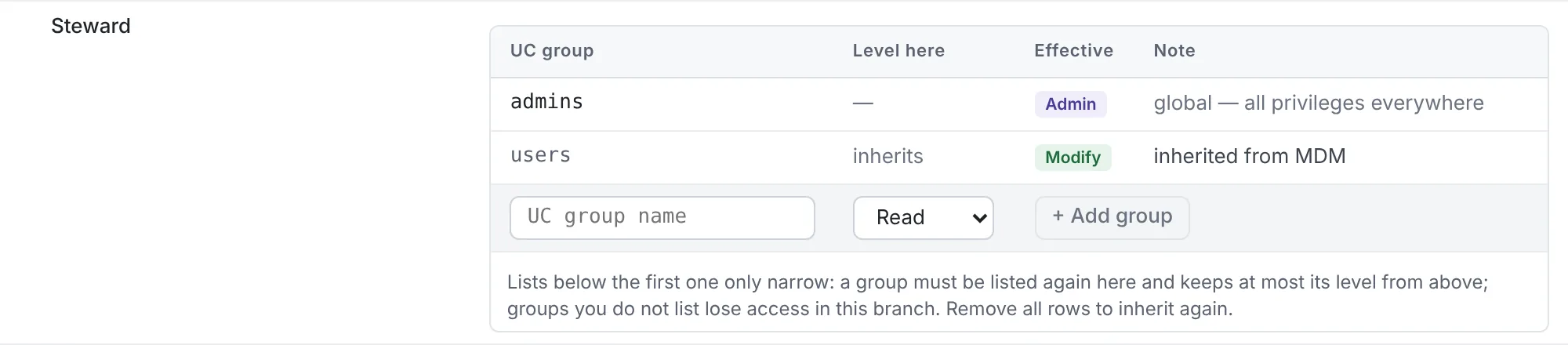
- + Add group: type the UC group name (known groups are suggested), choose a level from Reader to Governor. A Permission node is created on save when it does not exist yet (admins only).
- Level here: change the level of a listed group, or remove it with ×.
- Effective and Note preview the result before you save, e.g. not granted above — grant it on the root first or Reader above, not listed here — no access in this branch (with Keep to add it back).
- When you add the first entry on a node below the root, the inherited groups are copied in, so nobody loses access by accident.
Example
Root MDM: data-governors · Governor, data-stewards · Manager, editors · Modifier, analysts · Reader.
On Master Data: data-governors · Governor, data-stewards · Supervisor, editors · Modifier,
analysts · Reader.
| Group | Under Master Data | Elsewhere |
|---|---|---|
| data-governors | Governor — can also change the Steward lists | Governor |
| data-stewards | Supervisor (narrowed) — edit, lock; no new or deleted nodes | Manager |
| editors | Modifier — edit values only | Modifier |
| analysts | Reader — read and export | Reader |
The default grant on a new deployment is users · Manager on the root: every workspace user may edit, lock,
add, move and delete, but only admins (and Governors you add) change Owner and Steward.
Step by step: give a new group read access to Master Data
- Create the group in Unity Catalog and assign it to the workspace.
- Open MDM (the root). It is locked — click Unlock (admins), then Edit.
- In the Steward table type the group name, choose Reader, click + Add group, Save, then Lock.
- To keep the group out of other branches, edit System, Model and Reference Data and remove it there.
Upgrading from Read / Modify
Deployments before 0.2 had two levels. mdm_init upgrades them: Read becomes Reader, Modify becomes
Modifier, and the default users · Modify grant on the root becomes users · Manager, so users can
still add, move and delete nodes. Review your own Modify grants after the upgrade: a group that should keep
adding and deleting nodes needs Manager.
Checking what a group sees
Admins can pick a group in View as UC group in the header: the app shows the hierarchy, the actions and the permission label exactly as that group sees them. The Steward row on any node shows every group's effective level and where it comes from.
Other protections
- Locked nodes cannot be edited until a Supervisor (or above) unlocks them; seeded system nodes only by admins.
- UserDefined values are never overwritten by loads or golden-record refreshes.
- Every write records
modified_byandmodified_at; the Delta history andnode_historykeep every version.
Data access outside the app
- The app reads and writes
MDMNodeswith its service principal; users do not need table grants to use the app. - Give consumers access to
mdm_exportwith Unity Catalog grants — see Exporting with materialized views. - Keep
mdm_coreandmdm_staginglimited to the app, the jobs and your data engineers.