Modifying data
Building a hierarchy
Add a child
- Select the parent and click Add Child.
- Pick the types of the new node. The form below is the union of the properties of all selected types.
- Fill in the values and click Add child.
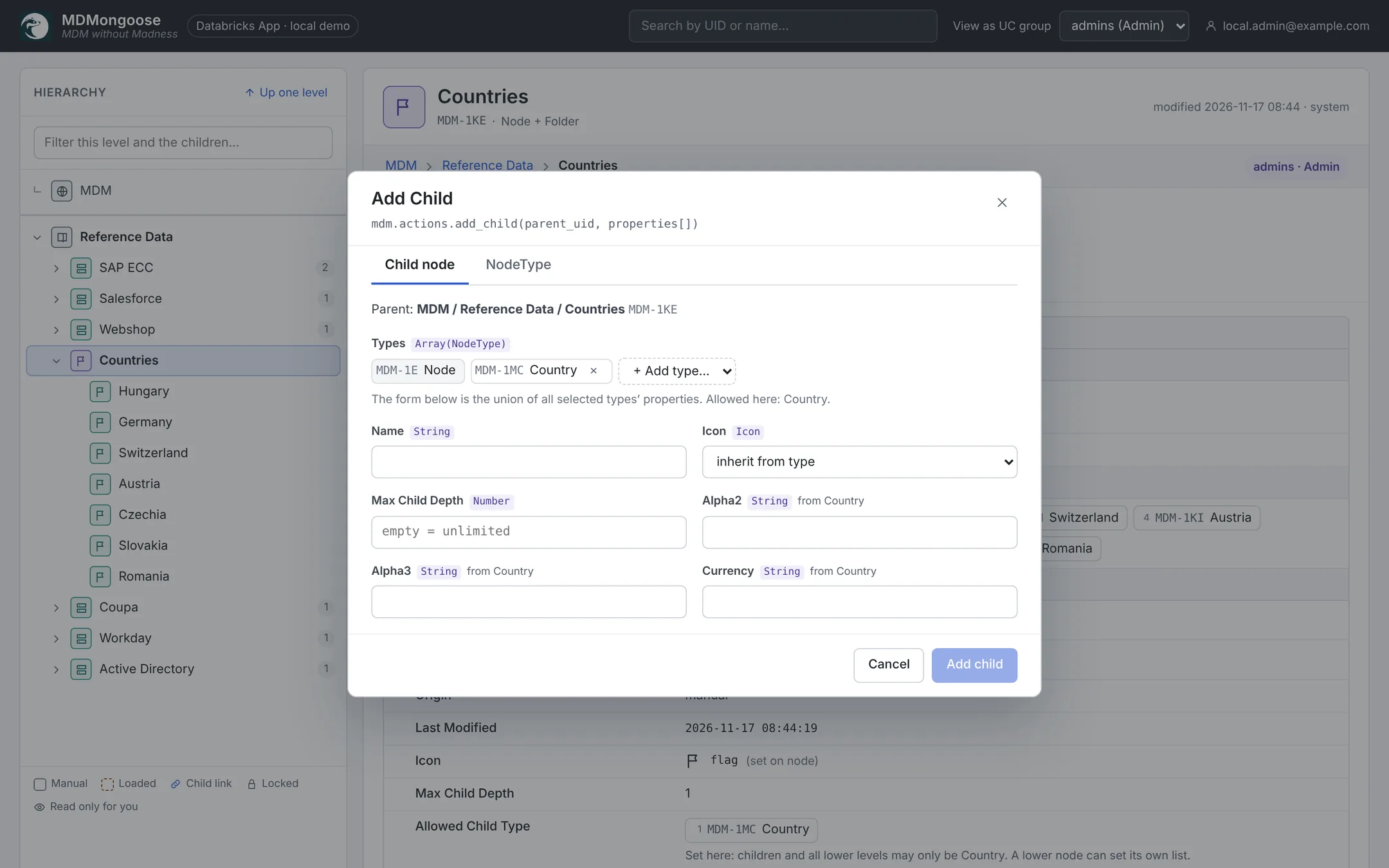
The types you can choose are limited by Allowed Child Type — the nearest list set on the parent or above
it. The new node must also fit every ancestor's Max Child Depth (0 = no children, empty = unlimited).
Shape a branch
Set these on any node with Edit:
| Property | Effect |
|---|---|
| Allowed Child Type | The types children (and all lower levels) may have, until a lower node sets its own list. Empty = no constraint. |
| Max Child Depth | How many levels may exist below this node. |
| Icon | The node's icon; empty uses the default icon of its first type. |
| Order (type Ordered) | The position among siblings. |
Example — a six-level product hierarchy: Product (Max Child Depth 6, allowed: Product Group) › Division › Category › Subcategory › Product Line › Product Family (allowed: Product) › Product.
Move, link and delete
- Change Parent opens an inline panel that only offers parents whose Allowed Child Type and Max Child Depth accept the node and its whole subtree. The move is one set-based update, however big the subtree.
- Add Child Link shows an existing node in a second place without copying it. Choose the link type (e.g.
same_as,related_to), the position and the target. A linked node opens in place, with a Go to origin banner. - Delete either moves the children up to the parent or deletes the whole subtree. Deletes are soft
(
is_deleted = true) and can be restored from the Delta history. - Delete All Child removes every child of the node in one step.
- Lock / Unlock protects a node from edits. System definitions and loaded records are locked; only admins can unlock seeded nodes.
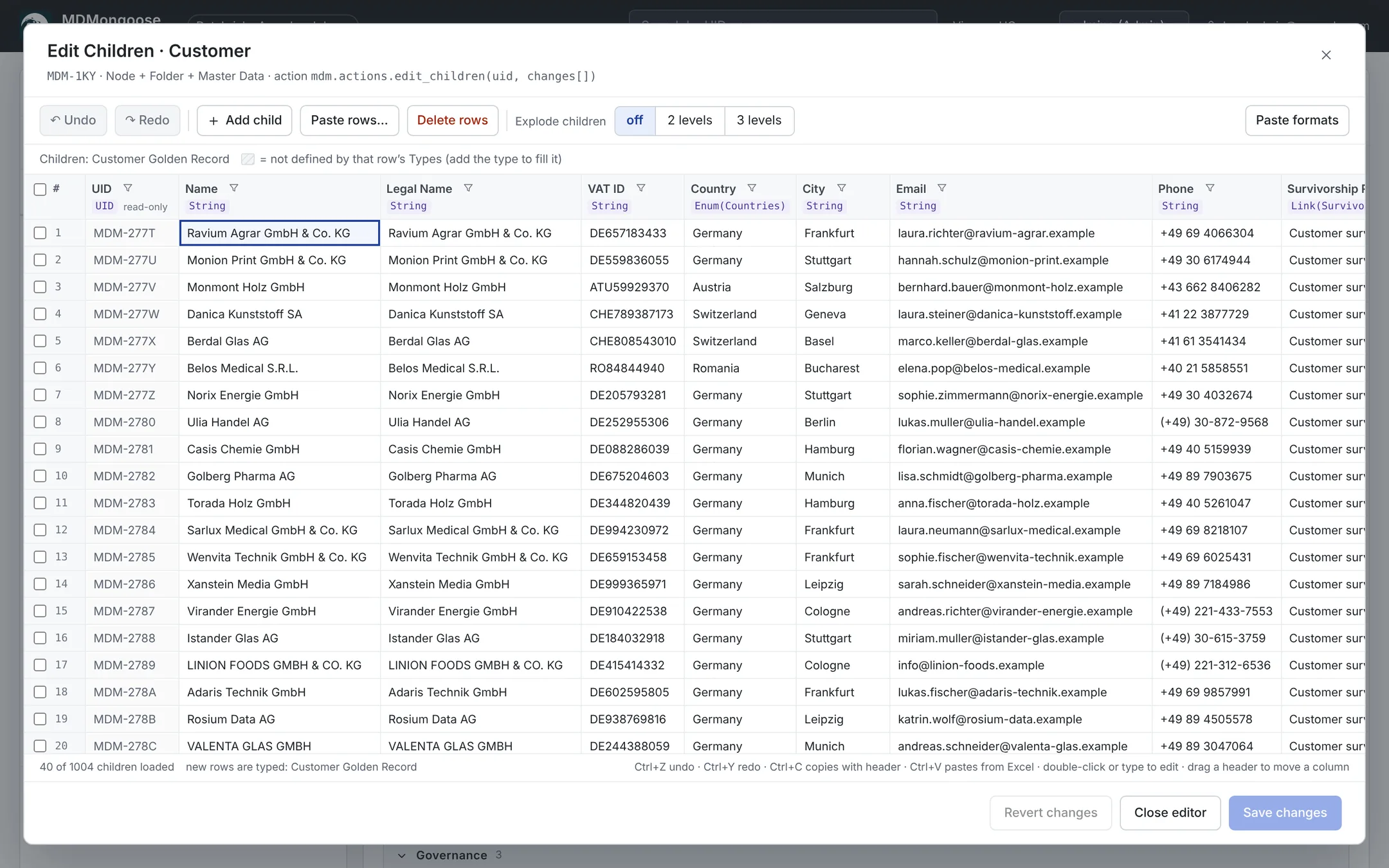
The Edit Children grid
Edit Children opens all children of a node in an Excel-like grid: explode grandchildren, sort and filter on the server, copy and paste with Excel, undo and redo, and save everything in one transaction.
→ See Edit Children for the full guide.
UserDefined values
When you change a value that came from a load or a golden-record refresh, it becomes UserDefined and automatic updates no longer overwrite it. To hand a value back to automation, click the property row and untick UserDefined; the next load or refresh sets it again.